
Adaptive Power Mode & Battery Hacks That Actually Learn Your Habits
Learn how to boost battery life in 2026 using Adaptive Power Mode and smart charging hacks on iPhone and Android. Discover automation tricks, background app control, AI-based battery learning, refresh rate optimization, and settings that can improve real-world battery performance by up to 30% without slowing your phone.
1/23/20265 min read
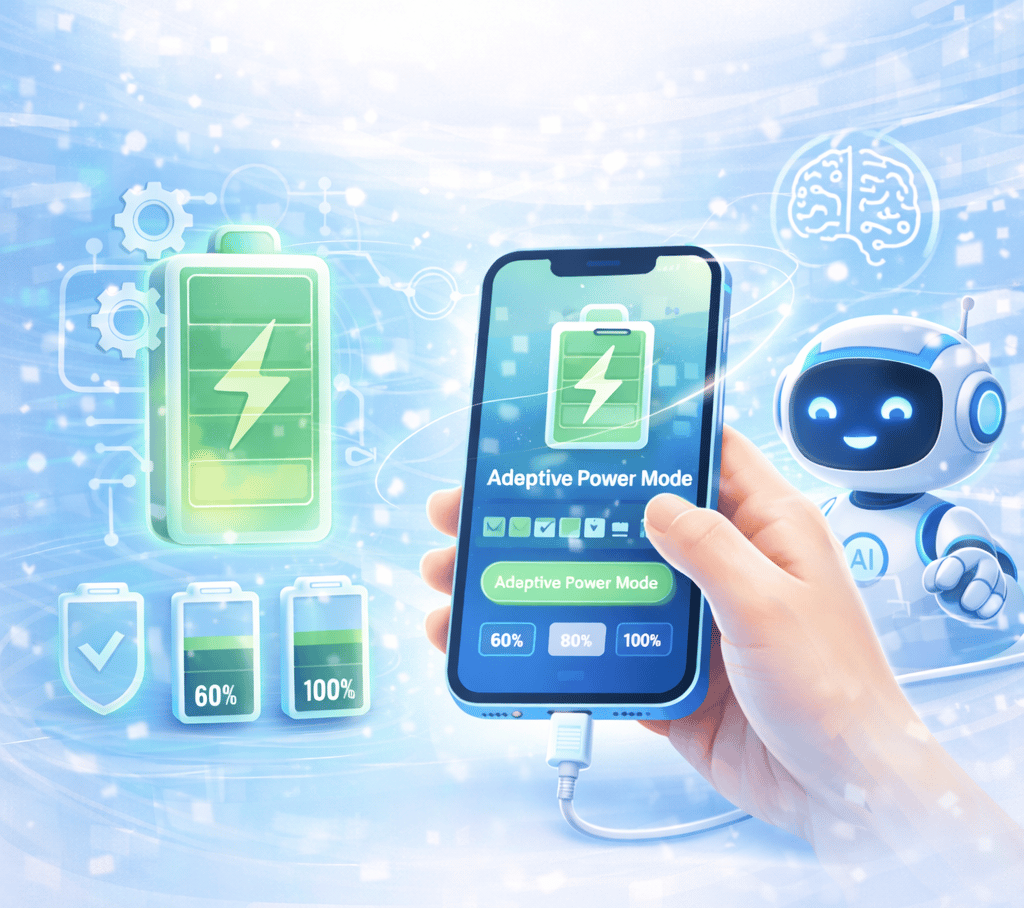
Let’s admit it.
Battery stress is still a thing.
You start the day confident.
100%.
By mid-afternoon you’re hunting for outlets like it’s a survival mission.
And you’re thinking:
“I barely used my phone today.”
Here’s what most people don’t realize in 2026:
Your phone is already trying to learn your habits.
It studies when you wake up.
When you scroll.
When you charge.
When you doom-scroll at night.
When your screen sits idle.
Both iOS 26 and modern Android versions now use adaptive power systems powered by machine learning.
The problem?
Most people never configure them properly.
Or worse… they override them constantly.
Let’s fix that.
By the end of this, your phone won’t just “save battery.”
It’ll actively adjust to how you live. 🔥
First: What Adaptive Power Actually Does (In Human Terms)
Forget the marketing language.
Here’s what adaptive power really means:
Your phone watches patterns.
It notices:
Which apps you open daily
Which apps you barely touch
What time you usually unplug
When you typically sleep
When your battery drains fastest
Then it quietly adjusts:
Background refresh timing
CPU throttling
App wakeups
Charging speeds
Sync schedules
It’s predictive battery management.
But it only works if you let it.
Let’s set it up properly.
1. Optimized Charging: Stop Cooking Your Battery Overnight
Most battery damage doesn’t happen from usage.
It happens from heat and prolonged 100% charging.
If your phone sits at 100% for 6–8 hours every night, that stresses lithium-ion cells.
That’s why optimized charging exists.
iPhone: Enable Optimized Battery Charging (And Leave It On)
Go to:
Settings → Battery → Battery Health & Charging
Turn on:
Optimized Battery Charging
What happens next?
Your phone charges to 80%.
Then it pauses.
It learns when you usually wake up.
About 1–2 hours before that time, it finishes charging to 100%.
You wake up full.
Your battery avoids sitting at max voltage all night.
In iOS 26, this prediction system is smarter.
It adapts if your schedule changes.
Stop disabling it unless absolutely necessary.
Trust it.
Android: Adaptive Charging & Charge Limits
Most Android devices now include:
Settings → Battery → Adaptive Charging
Turn it on.
Some brands allow you to:
Cap charging at 80%
Set charging windows
Schedule overnight finish times
If you don’t need 100% every morning?
Use the 80% limit.
You’ll extend battery lifespan significantly.
This isn’t about today’s battery.
It’s about two years from now.
That’s long-term thinking. ⚡
2. Adaptive Battery & Background Learning (This Is the Real Brain)
Now we get into daily drain reduction.
Android: Adaptive Battery (Turn It On and Leave It Alone)
Go to:
Settings → Battery → Adaptive Battery
Enable it.
Here’s what happens:
Android studies app usage patterns.
If you haven’t opened an app in days?
It restricts:
Background CPU
Data sync
Notifications
Your daily apps stay fast.
Your rarely-used apps go quiet.
Battery drain drops without you noticing.
Don’t manually micromanage everything.
Adaptive learning does it better.
iPhone: Master Background App Refresh (Manual but Powerful)
iOS doesn’t call it Adaptive Battery.
But it has similar intelligence.
Go to:
Settings → General → Background App Refresh
Review the list.
Ask yourself:
Does this app really need to refresh when I’m not using it?
Examples:
News apps → Maybe
Messaging apps → Yes
Shopping apps → No
Random games → Definitely no
Turn off unnecessary refresh.
This alone can save 10–20% daily drain for heavy users.
Small change. Big payoff.
3. Build a Smart Power Mode That Activates Before You Panic
Most people use Low Power Mode reactively.
At 15%.
That’s too late.
Let’s make it proactive.
iPhone: Automate Low Power Mode
Open:
Shortcuts → Automation → Create Personal Automation
Choose trigger:
When battery falls below 50%
Or specific time (like 3PM)
Add actions:
Turn on Low Power Mode
Reduce brightness
Enable Focus Mode
Now your phone enters efficiency mode before it becomes desperate.
That’s intelligent battery planning.
Android: Use Routines for Power Saving
On Samsung:
Use Modes & Routines.
Trigger:
Battery under 40%
Leaving home WiFi
Actions:
Enable Power Saving
Reduce screen resolution
Lower refresh rate
Turn off 5G
On Pixel:
Use Battery Saver Schedule.
Set it to turn on automatically based on usage prediction.
No more “Oh no I’m at 9%.”
You’re ahead of the curve. 🚀
4. Refresh Rate & Display Tweaks (The Silent Drainers)
High refresh rate feels amazing.
But it eats battery.
iPhone Pro Models
Settings → Display & Brightness
Ensure ProMotion is set to adaptive.
Don’t force constant high refresh.
Let it drop to 10–30Hz when static.
You won’t notice.
Your battery will.
Android Devices
Settings → Display → Motion Smoothness
Choose:
Adaptive instead of High.
If your phone allows resolution changes:
Drop from QHD to FHD.
The visual difference is minimal.
Battery improvement is real.
This is one of the highest impact changes you can make.
5. Kill Rogue Apps Before They Kill Your Battery
Open your battery usage stats right now.
Don’t guess.
Look at the data.
iPhone
Settings → Battery
Scroll down.
Find apps using unusually high percentage.
Tap them.
Check:
Background activity time
Screen on time
If a shopping app used 14% in background?
That’s not normal.
Disable background refresh.
Restrict notifications.
Android
Settings → Battery → Battery Usage
Review:
Foreground vs Background usage
If background time is high, set the app to:
“Restricted”
You don’t need to uninstall.
Just limit it.
Data doesn’t lie.
Use it.
6. Location Services Optimization (Huge but Overlooked)
GPS drains battery fast.
Especially “Always” permissions.
iPhone
Settings → Privacy & Security → Location Services
Review apps set to:
“Always”
Switch most to:
“While Using the App”
Then scroll down:
Disable “Significant Locations” if you don’t rely on it.
That feature tracks places you visit frequently.
Helpful.
But optional.
Android
Settings → Location → App Location Permissions
Switch unnecessary apps to:
“Allow only while using”
This can noticeably improve daily battery.
Especially for social media apps.
7. Signal Strength & 5G Reality Check
Weak signal destroys battery.
When your phone struggles to find signal, it boosts radio power.
If you’re in poor coverage areas:
Enable Airplane Mode temporarily.
Or disable 5G.
iPhone
Settings → Cellular → Cellular Data Options
Switch from:
5G Auto → LTE
If signal is weak.
Android
Under Network settings:
Switch preferred network from 5G to LTE when needed.
Sometimes LTE is more efficient in real-world conditions.
Battery life improves instantly.
8. Charging Heat Strategy (This One Matters Long-Term)
Heat kills batteries faster than usage.
Avoid:
Charging under pillows
Thick cases while charging
Wireless charging on hot surfaces
If possible:
Remove case during overnight charge.
Keep phone on cool surface.
Your battery health percentage will stay higher over time.
That’s long-term thinking.
9. Monthly Reset Ritual (Not Daily — Monthly)
You don’t need to restart daily.
But once a month:
Restart your phone
Update system
Review battery stats
Delete unused apps
Adaptive systems learn patterns.
Give them clean baselines occasionally.
That’s it.
Quick Battery Optimization Checklist
Want quick wins today?
✅ Enable optimized charging
✅ Turn on adaptive battery
✅ Reduce background refresh
✅ Automate power saving
✅ Lower adaptive refresh rate
✅ Restrict rogue apps
✅ Limit “Always” location access
✅ Manage signal usage
Do this once.
Let your phone learn from there.
The Real Secret
Battery life in 2026 isn’t about turning everything off.
It’s about guided intelligence.
Your phone is already smart.
You just need to:
Set boundaries.
Enable learning.
Stop micromanaging unnecessarily.
Adaptive power works best when configured once — then trusted.
That’s the upgrade.
So tell me.
Are you living in constant 20% panic…
Or are you ready to stay above 40% like a calm adult?
Which tweak are you doing first? 👀
Contact
Questions or tips? Reach out anytime.
© 2025. All rights reserved.