
Automate One Annoying Daily Routine with Zero-Code AI in Under 10 Minutes
Learn how to automate annoying daily routines using zero-code AI tools in 2026. Discover how to set up driving auto-replies, smart grocery lists from receipts, inbox cleanup, screenshot organization, daily summaries, and more on iPhone and Android in under 10 minutes.
1/30/20264 min read
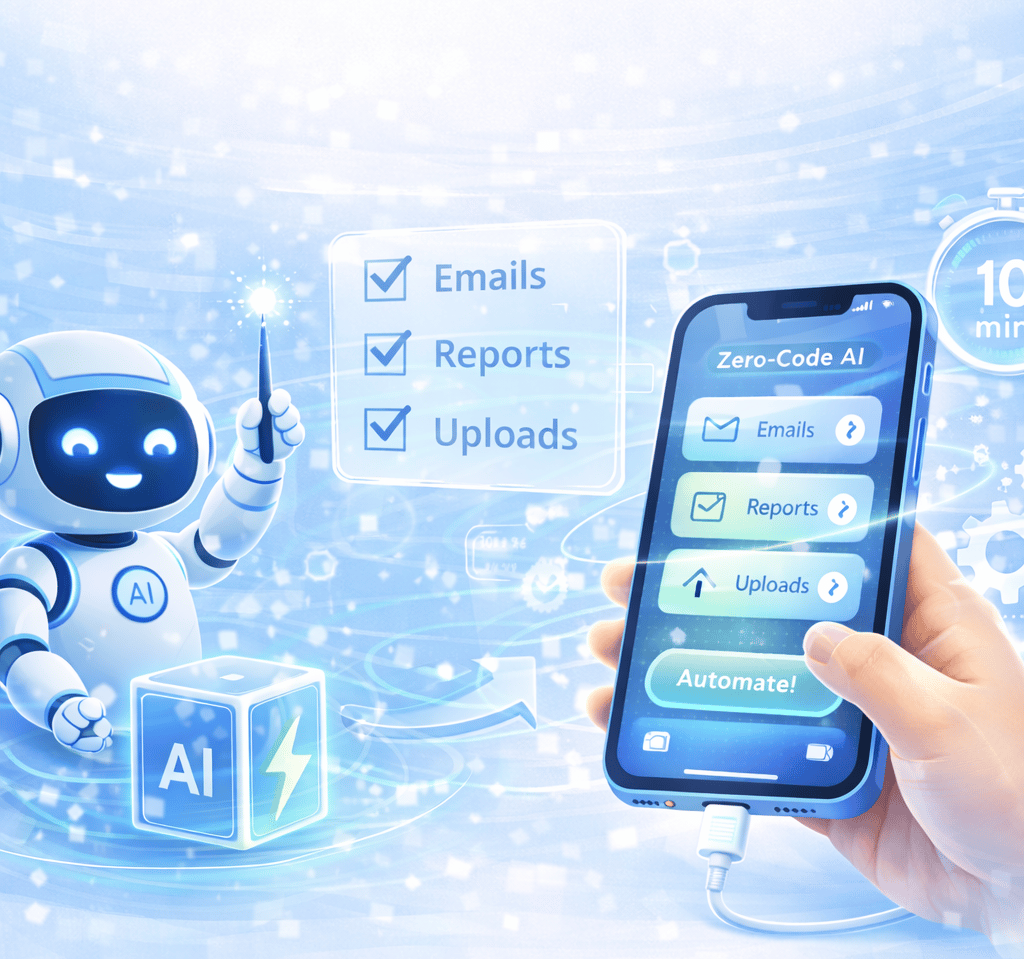
We all have that one tiny task.
The one that isn’t hard.
Just… repetitive.
Replying “On my way.”
Rewriting the same grocery list.
Digging through your inbox.
Saving screenshots you swear you’ll organize later.
Copying calendar info into reminders.
None of these are dramatic.
But they quietly steal mental energy.
And in 2026, that’s unnecessary.
Because your phone already has everything you need to automate them.
No coding.
No paid automation platforms.
No complicated workflows.
Just built-in tools + a little AI.
Let’s remove a few daily annoyances in under 10 minutes each. 🔥
Why Zero-Code AI Automation Is a Big Deal
Automation used to feel technical.
Now it feels normal.
You don’t need to be “techy.”
You just need to stop doing the same thing manually every day.
Here’s what happens when you automate small routines:
Fewer micro-decisions
Less context switching
Fewer forgotten tasks
Cleaner digital space
Lower stress
You don’t need to automate your entire life.
Just the stuff that makes you sigh.
Let’s start with one everyone can relate to.
1. Auto-Reply While Driving (Stop Typing the Same Thing Every Day)
You’re driving.
Your phone buzzes.
It’s someone asking:
“Where are you?”
You don’t need a full conversation.
You need one sentence.
Typing it manually every time?
Unnecessary.
Let’s automate it.
How to Do It in 2 Minutes (iPhone)
Open Settings
Tap Focus
Select Driving
Tap Auto-Reply
Choose who gets auto-replies:
Favorites
Recents
No One
Or specific contacts
Customize the message.
Example:
“I’m driving right now. I’ll reply when I arrive.”
Or:
“On the road — will respond in about 20 mins.”
Now, whenever Driving Focus activates, your phone handles it.
No typing.
No temptation to glance at messages.
Safer.
Smarter.
Android Version (Just as Easy)
Open Settings
Search “Driving Mode”
Enable automatic replies
You can link it to:
Bluetooth connection
Car system
Specific times
Customize the message once.
Every time you connect to your car, it handles communication.
That’s zero-code automation.
And it instantly removes friction. ⚡
2. Turn Grocery Receipts Into a Smart Reusable List
You go grocery shopping.
You throw away the receipt.
Next week, you try to remember what you bought.
You forget something.
Repeat cycle.
Let’s fix that with AI.
How to Turn a Receipt Into a Smart List
Step 1: Take a photo of your receipt.
Step 2: Open ChatGPT (or similar AI tool).
Step 3: Upload the image.
Prompt:
“Extract grocery items from this receipt and organize into a reusable shopping list.”
AI instantly organizes:
Produce
Dairy
Snacks
Household
Frozen
Drinks
You now have a categorized template.
Save it into:
Notes
Reminders
Google Keep
Any list app
Now every week, you tweak instead of rewrite.
That saves 5–10 minutes weekly.
Multiply that by a year.
You just automated dozens of hours.
Small move. Big gain. 🚀
3. Inbox Cleanup Without Living in Your Email App
Inbox fatigue is real.
Notifications.
Newsletters.
Receipts.
Random updates.
Let’s reduce chaos automatically.
Step 1: Create Promo Filters (Gmail Example)
Open Gmail
Search “unsubscribe”
Click filter icon
Create filter
Apply label “Promotions”
Skip Inbox
Now promo clutter bypasses your main view.
No more manually deleting.
Step 2: AI Daily Email Summary
Once per day:
Copy your unread subject lines.
Paste into ChatGPT.
Prompt:
“Summarize these emails into 5 essential bullet points.”
You now process your inbox in under 3 minutes.
Instead of scanning every message.
You’re reviewing, not reacting.
That’s automation + AI working together.
4. Morning AI Summary (Your Personal Assistant Mode)
Most people check:
Calendar
Weather
Tasks
Notes
Every morning.
That’s 4–5 apps.
Let’s combine it.
iPhone Morning Automation
Open Shortcuts
Create new automation
Trigger: 7:00 AM
Add actions:
Get today’s events
Get weather
Get reminders
Combine text
Speak text
Now your phone reads your day summary.
While you brush your teeth.
Hands-free.
Zero extra taps.
Feels futuristic.
Costs nothing.
Android Version
Use Google Assistant Routines.
Trigger phrase:
“Good morning”
Add actions:
Tell me today’s events
What’s the weather
Read reminders
One phrase.
Full summary.
No scrolling required.
That’s smooth automation.
5. Screenshot Auto-Sorter (End the Screenshot Graveyard)
Your camera roll is probably messy.
Screenshots mixed with real photos.
Receipts next to family pictures.
Let’s separate them automatically.
iPhone Setup
Open Shortcuts
Create automation
Trigger: When screenshot is taken
Action: Move to Screenshots album
Now every screenshot organizes itself.
Your main gallery stays clean.
You didn’t lift a finger.
Android Setup
Google Photos automatically detects screenshots.
You can:
Create custom folders
Archive screenshots
Use automation apps to auto-move them
Now your camera roll doesn’t look chaotic.
Simple tweak.
Huge visual relief.
6. Auto-Save Important Attachments to Cloud
Ever lose a PDF buried in messages?
Let’s automate storage.
iPhone Shortcut for Attachments
Create automation:
Trigger:
When email from specific sender arrives.
Action:
Save attachment to iCloud Drive folder.
Now contracts, invoices, documents store themselves.
No manual downloading.
Android Alternative
Use Gmail filter:
Search:
has:attachment
Apply label.
Then once per week:
Move labeled attachments to Drive.
Or use automation apps for auto-saving.
You just removed manual file management.
7. Smart Focus Mode by Location (Phone Adapts to Where You Are)
Instead of manually switching modes…
Let your phone react to context.
iPhone Setup
Create Focus automation.
Trigger:
Arriving at Work location.
Actions:
Enable Work Focus
Silence social apps
Lower brightness
Turn off personal notifications
Now your phone transforms automatically when you arrive.
No tapping required.
Android Setup
Use Modes & Routines.
Trigger:
Connected to Work WiFi.
Actions:
Silence certain apps
Enable productivity apps
Lower screen timeout
Your phone changes behavior based on environment.
That’s adaptive automation.
8. Auto-Convert Voice Notes into Text
If you send voice notes often, this one’s powerful.
Use AI transcription tools.
Upload voice note.
Prompt:
“Turn this into a clean message.”
Now your casual voice rant becomes structured text.
No manual rewriting.
Perfect for:
Client messages
Long explanations
Brain dumps
You talk.
AI formats.
That’s efficient.
9. Smart Habit Reminder That Learns Patterns
Instead of setting random reminders…
Use AI to refine them.
Prompt:
“Create a weekly habit tracker schedule for gym + hydration.”
Paste result into Reminders.
Now your reminders are structured, not random.
AI designs it.
Your phone executes it.
That’s leverage.
10. The 10-Minute Automation Stack
If you only do five today:
✅ Driving auto-reply
✅ Grocery receipt AI list
✅ Promo email filter
✅ Screenshot auto-folder
✅ Morning summary routine
All zero-code.
All under 10 minutes each.
All run forever once set.
That’s the beauty.
Why This Actually Changes Your Day
Automation isn’t about complexity.
It’s about removing friction.
Every repetitive task you eliminate:
Frees mental bandwidth
Reduces decision fatigue
Creates small daily wins
Your phone becomes:
Predictive
Helpful
Quietly efficient
Instead of chaotic.
And you didn’t write a single line of code.
That’s the power of zero-code AI in 2026. 🚀
So tell me.
What’s the one daily task you secretly hate?
And which automation are you setting up first?
Drop it below. 👀
Contact
Questions or tips? Reach out anytime.
© 2025. All rights reserved.