
How to Turn Your Phone into a Portable White Noise + Focus Machine in 2026
Learn how to turn your iPhone or Android into a powerful white noise and focus machine in 2026. Discover built-in background sound features, brown noise tips, AI-generated soundscapes, spatial audio tricks, and automation hacks that boost productivity and sleep anywhere.
1/16/20264 min read
Let’s start with something most people get wrong.
When you can’t focus, you blame:
Your phone
Notifications
Social media
Your attention span
But sometimes the real problem?
Noise.
Not music.
Not podcasts.
Random background chaos.
The neighbor’s TV.
Distant traffic.
Someone typing loudly.
Your own house feeling “too quiet.”
Your brain doesn’t like unpredictability.
It burns energy processing it.
And in 2026, you don’t need a fancy desk gadget to fix that.
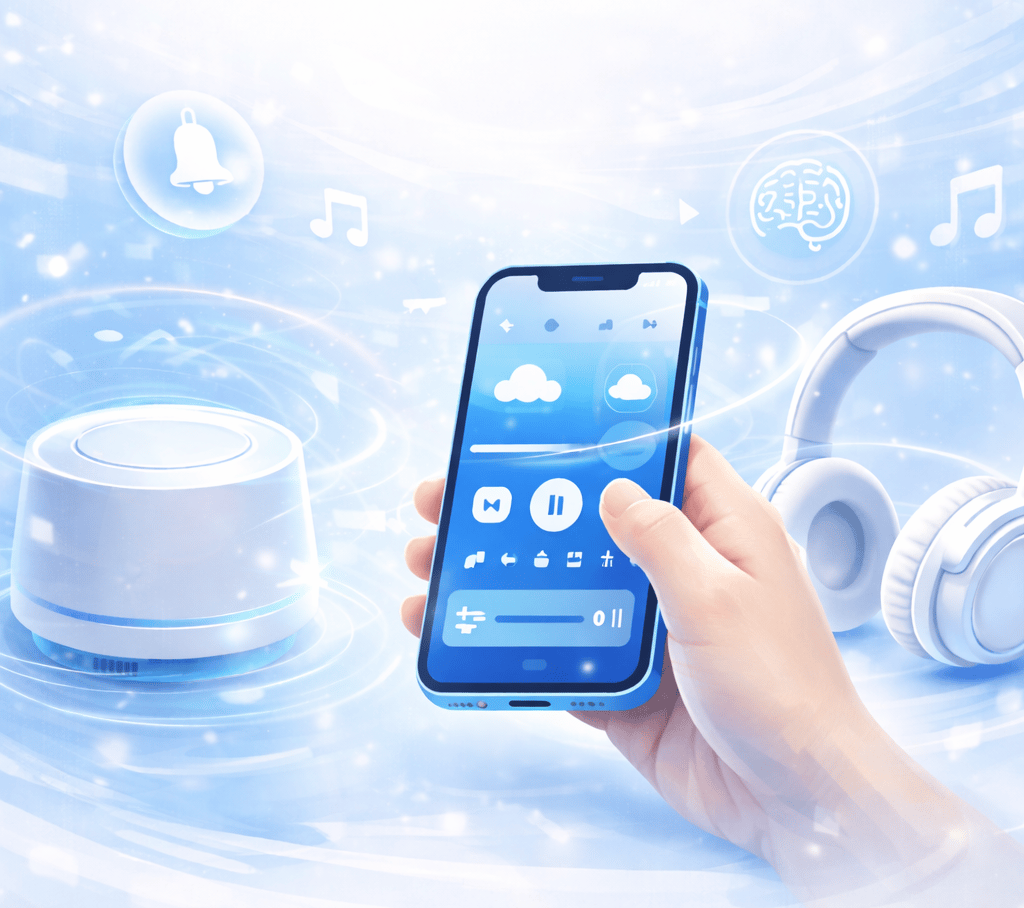
Your phone — yes, the same one distracting you — can become your portable focus machine.
Sleep tool.
Travel companion.
Deep work trigger.
Let’s build it properly. 🔥
First: Why Background Sound Changes Everything
Quick brain explanation. No science lecture.
Your brain is always scanning for danger.
Sudden sounds trigger attention spikes.
Even tiny ones.
When audio is unpredictable, your brain keeps checking:
“What was that?”
White noise smooths the spikes.
It creates a consistent audio blanket.
Your brain relaxes.
Focus improves.
And here’s the cool part:
It works even if you don’t consciously notice it.
Now let’s set this up the right way.
1. iPhone’s Built-In Background Sounds (Stop Ignoring This)
If you’re on iOS 26, you already have a built-in white noise machine.
No download required.
No subscription.
Most people never touch it.
That’s a mistake.
Apple quietly improved Background Sounds over the last few updates, and now they’re actually good.
You get:
Balanced Noise
Bright Noise
Dark Noise
Ocean
Rain
Stream
And yes, they can play underneath everything.
Instagram.
Safari.
Notes.
Email.
It keeps running.
That’s the magic.
How to Turn It On in 30 Seconds (iPhone)
Open Settings
Tap Accessibility
Tap Audio & Visual
Tap Background Sounds
Toggle it on
Now pick a sound.
Adjust the volume.
Here’s the move most people skip:
Add “Hearing” to Control Center.
Go to:
Settings → Control Center → Add “Hearing”
Now you can toggle background sound instantly.
No menu diving.
No friction.
Which Sound Should You Use?
Here’s the breakdown:
Balanced Noise → neutral and steady
Dark Noise → deeper and softer
Bright Noise → sharper and crisper
Rain → calming and rhythmic
Ocean → immersive and wide
Stream → gentle and light
If you’re working?
Try Balanced or Dark Noise first.
If you’re sleeping?
Try Rain or Ocean.
Test for 10 minutes.
Your brain will decide.
2. Android Built-In Focus Sounds (They’re Hiding)
Android users — don’t skip this.
Most modern Android devices have ambient sound features built in.
They’re just buried.
Look under:
Digital Wellbeing
Sound & Vibration
Bedtime Mode
Google Clock (Sleep Sounds)
Pixel phones often include relaxing sound options directly in system settings.
Samsung devices allow sound routines through Bixby Routines or Modes & Routines.
How to Find It Fast (Android)
Open Settings.
Search:
“Relax”
“Ambient”
“Sleep”
“Focus”
You’ll usually find built-in options.
If not, Google Clock app has free sleep sounds that loop cleanly.
No ads.
No weird interruptions.
And yes, you can use them during the day too.
3. Brown Noise vs White Noise (Pick the Right Weapon)
Not all noise is equal.
White noise = equal frequencies
Pink noise = balanced and softer
Brown noise = deeper and smoother
Many people think they hate white noise.
But what they really hate?
High-frequency hiss.
Brown noise is lower and warmer.
If you:
Have ADHD
Get overstimulated easily
Work long writing sessions
Feel white noise is “sharp”
Try brown noise.
You’ll probably prefer it.
Most built-in systems offer white-style noise.
For brown noise, use:
Free browser generators
Simple sound apps
AI-generated ambient tools
Test both for one work session.
See what sticks.
4. The Spatial Audio Upgrade (Makes It Feel Real)
This is where it gets cool.
If you use AirPods or spatial-audio capable earbuds, you can make ambient sound feel immersive.
On iPhone:
Turn on Background Sounds
Open Control Center
Long-press volume slider
Enable Spatial Audio (if available)
Now your rain doesn’t feel flat.
It surrounds you.
Your brain perceives space.
That depth helps immersion.
On Android:
Enable:
Dolby Atmos
360 Audio
Spatial Sound
Found under sound settings (varies by brand).
It’s subtle.
But once you try it, regular white noise feels basic.
5. AI-Generated Soundscapes (The 2026 Upgrade)
Now let’s make this smarter.
Instead of looping the same rain track every day…
Use AI-generated dynamic soundscapes.
These tools:
Create evolving ambient audio
Avoid obvious loops
Mix environmental layers
Adjust intensity gradually
Why does this matter?
Repetitive loops break immersion.
Your brain eventually detects patterns.
AI-generated sound shifts subtly.
That keeps your focus stable.
Search for:
“Free AI ambient generator”
“Dynamic brown noise tool”
“Custom soundscape mixer online”
Many run directly in browser.
No downloads needed.
This is next-level focus.
6. Make It Automatic (Don’t Rely on Willpower)
Here’s where most people fail.
They rely on remembering to turn it on.
Bad strategy.
Automate it.
iPhone Automation Setup
Open Shortcuts.
Create Automation.
Trigger:
Time of day
When connecting to WiFi
When opening specific app
Action:
Set Background Sound
Adjust volume
Turn on Do Not Disturb
Now every weekday at 9 AM?
Your phone shifts into focus mode automatically.
No decision fatigue.
Android Automation Setup
On Samsung:
Use Modes & Routines.
On Pixel:
Use Rules or automation triggers.
Trigger:
Work WiFi connection
Time-based
Headphones connected
Action:
Play ambient sound
Lower notification volume
Enable Focus Mode
Now your environment shifts instantly.
That’s powerful. ⚡
7. Pair It With a Timer Ritual
This is the secret sauce.
Don’t just play noise randomly.
Pair it with time blocks.
Example:
25-minute timer
Background rain
Do Not Disturb enabled
Screen slightly dimmed
Your brain starts associating that specific sound with:
“Okay. We’re working now.”
After 1–2 weeks, you’ll drop into focus faster.
It becomes a trigger.
That’s behavioral science working in your favor.
8. Turn It Into a Sleep Tool (Without Killing Battery)
You don’t want your phone dead overnight.
Here’s the smart way.
On iPhone:
Enable Low Power Mode
Turn screen off immediately
Set background sounds to stop after timer
On Android:
Use Sleep Mode
Enable Battery Saver
Use Google Clock sleep sounds
Also:
Place phone face down.
Reduces accidental wake-ups.
Simple trick.
Works.
9. Travel Mode Focus (Underrated Use Case)
Airplanes.
Trains.
Hotels.
White noise is huge here.
Instead of blasting music, try brown noise in earbuds.
It:
Masks engine hum
Softens chatter
Reduces anxiety
Combine with:
Noise-canceling headphones
Dim screen
Downloaded reading material
You just built a portable calm bubble.
From your phone.
10. Add AI as a Focus Coach Layer
Here’s the advanced move.
Before your work block:
Open ChatGPT.
Prompt:
“Give me a 30-minute deep focus challenge for [task].”
Now combine:
AI instructions
Ambient noise
Timer
Do Not Disturb
You’ve created:
Environmental control
Mental direction
Time constraint
Your phone becomes a productivity engine.
Not a distraction machine. 🚀
Why This Beats Buying a Separate Device
Because your phone is:
Always with you
Customizable
Automatable
Adaptive
Dedicated white noise machines are static.
Your phone evolves.
And in 2026, it learns your patterns.
That’s smarter.
Quick Setup Checklist
If you want this done today:
✅ Enable built-in background sounds
✅ Add quick toggle
✅ Test brown vs white noise
✅ Enable spatial audio
✅ Create automation
✅ Pair with timer ritual
✅ Try AI-generated dynamic sound
That’s it.
You now have a portable white noise + focus machine.
So tell me.
Are you building this for work, sleep, or travel?
And have you tested brown noise yet?
Drop your favorite setup and let’s compare. 👀
Contact
Questions or tips? Reach out anytime.
© 2025. All rights reserved.