
Underrated Free AI Tools That Turn Boring Photos into Spatial/3D Lock Screens
Discover underrated free AI tools that turn boring photos into stunning spatial and 3D lock screens on iPhone and Android. Learn how to create depth effect wallpapers, AI background replacements, parallax motion wallpapers, and immersive lock screen visuals in 2026 without paid apps or design skills.
1/26/20264 min read
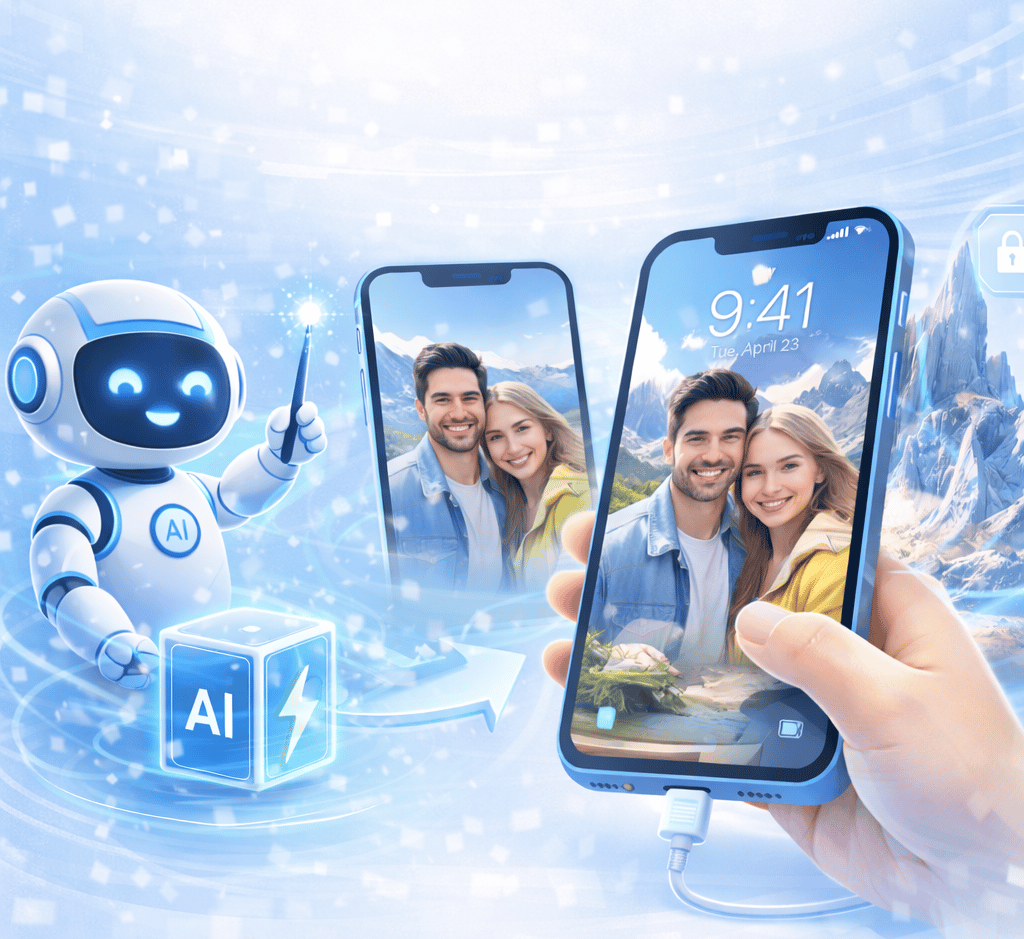
Quick question.
How many times do you look at your lock screen every day?
50?
100?
More?
Now be honest.
Is it still the same photo you set six months ago?
Same flat image.
Same crop.
Same zero depth.
Meanwhile, in 2026, your phone can create:
AI-generated depth separation
3D-style parallax movement
Subject pop-out effects
Spatial layering
Motion-reactive wallpapers
And most people still use static photos.
We’re fixing that today.
No Photoshop.
No expensive apps.
No computer needed.
Just free AI tools and smarter setup.
Let’s turn that boring lock screen into something that actually feels modern. 🔥
First: What Makes a Lock Screen Feel “3D”?
Before we touch tools, let’s understand the illusion.
A 3D or spatial wallpaper works because of layer separation.
Instead of one flat image, you create:
Foreground subject
Background layer
Optional middle depth
Subtle motion response
When your phone tilts, the background shifts slightly.
Your brain interprets that as depth.
It’s subtle.
But once you see it, flat wallpapers feel outdated.
This is about visual upgrade without clutter.
Let’s start with what you already have.
1. iPhone Depth Effect (Use It the Right Way)
If you’re on iOS 26, you already have one of the cleanest depth tricks built in.
It’s called Depth Effect.
Most people try it once and give up.
That’s because they don’t frame the photo correctly.
Let’s fix that.
How to Do It in 60 Seconds (iPhone)
Long-press your lock screen
Tap “Customize”
Select “Lock Screen”
Choose a photo
Tap the three dots
Enable “Depth Effect”
If it doesn’t activate, don’t panic.
The photo just needs better positioning.
The Trick Most People Miss
Depth Effect works best when:
The subject is clearly separated
The head or top area overlaps the clock
Background contrast is clean
Portrait mode photos work best.
But regular photos can work too.
Try zooming slightly.
Move the subject higher.
The clock should slightly overlap your subject.
When it works?
It looks premium.
No extra apps.
No battery drain.
Just smarter framing. ⚡
2. Pixel & Android Cinematic Wallpapers (Hidden AI Feature)
Android users — especially Pixel owners — this is where things get fun.
Google Photos includes a Cinematic Photo effect.
It creates artificial depth using AI.
No special camera required.
How to Create Cinematic Wallpaper (Pixel)
Open Google Photos
Select a photo
Tap “Edit”
Choose “Cinematic”
It generates a layered depth effect.
When you tilt your phone, the background shifts subtly.
It’s not dramatic.
It’s elegant.
That subtlety makes it feel intentional.
Samsung & Other Android Devices
Samsung offers:
Motion wallpaper
Dynamic lock screens
Video lock screens
Go to:
Settings → Wallpaper & Style → Lock Screen
Choose dynamic or motion options.
Upload short 5–10 second loops if using video.
Keep it minimal.
Overly flashy wallpapers feel gimmicky.
Subtle depth feels premium.
3. Free AI Background Removal (This Changes Everything)
Now we level up.
If your photo doesn’t naturally separate well?
We fake depth.
Free AI background removers can isolate your subject in seconds.
Search:
“Free AI background remover online”
Most browser tools let you:
Upload photo
Automatically remove background
Download transparent PNG
No watermark.
No sign-up required.
Now you have:
Layer 1 → Subject
Layer 2 → Background
This is how professional spatial wallpapers are built.
How to Build a Layered Wallpaper (No Design Skills Required)
Step 1: Remove background.
Step 2: Blur the original image for background layer.
Step 3: Place subject back on top.
You can use simple mobile editors.
Even basic apps allow layering now.
The result?
Instant depth illusion.
When used with iPhone Depth Effect or Android parallax apps, it looks next-level.
And nobody will guess it took five minutes.
4. AI-Generated Backgrounds (Make It Look Cinematic)
Now let’s make it cooler.
Instead of reusing your original background…
Replace it.
Use free AI image generators to create:
Soft neon cityscape
Dreamy pastel clouds
Minimal gradient wash
Blurred abstract color
Subtle textured light
Keep it clean.
Lock screens are viewed quickly.
You want:
Strong contrast
Clear subject
Minimal clutter
Combine your cut-out subject with an AI-generated background.
Now it feels custom.
Not just a photo.
A designed visual.
That’s the upgrade. 🚀
5. 3D Parallax Apps (Full Motion Mode)
If you want actual motion depth, not just visual layering…
Use parallax wallpaper apps.
They simulate depth using gyroscope data.
When you tilt your phone:
Foreground moves slightly differently than background.
Your brain interprets depth.
Search:
“3D Parallax Wallpaper Free”
Many allow:
Uploading your own image
Adjusting depth intensity
Customizing motion sensitivity
Keep movement subtle.
Too much movement feels distracting.
Small shift feels immersive.
6. AI Depth Map Generators (Advanced but Powerful)
Here’s the advanced move.
Some AI tools can create depth maps from flat photos.
They analyze distance between objects and assign depth layers.
This works especially well for:
Landscapes
Travel photos
City skylines
Mountain scenes
Search:
“Free AI depth map generator”
Upload image.
Download depth version.
Use compatible apps to apply motion layers.
Now your flat sunset feels dimensional.
No DSLR required.
7. Battery-Friendly Motion Strategy
Let’s address the concern.
“Won’t motion drain battery?”
It can.
If done poorly.
Best practice:
Use subtle movement
Avoid long looping videos
Disable motion on low power mode
Keep background simple
Modern phones handle light parallax well.
But moderation is key.
Depth should enhance.
Not distract.
8. Match Your Lock Screen With Widgets & Clock
This is where polish happens.
Choose wallpaper colors that match:
Clock font color
Widget tones
Notification contrast
High contrast improves readability.
Minimal clutter improves aesthetic.
Avoid:
Bright busy backgrounds
Overlapping text areas
Low contrast subject
Lock screens should feel intentional.
Not chaotic.
9. Create Seasonal or Mood-Based Sets
You don’t need one wallpaper.
Create sets.
For example:
Work mode → Minimal gradient + clean subject
Weekend mode → Cinematic cityscape
Travel mode → Landscape depth wallpaper
Night mode → Dark brown/black depth background
On iPhone, you can create multiple lock screens and switch easily.
On Android, use wallpaper profiles.
Your phone feels refreshed without changing devices.
Small change.
Big psychological impact.
10. The 5-Minute Upgrade Plan
If you want this done today:
Pick one strong photo
Remove background using free AI tool
Generate simple AI background
Layer subject + background
Apply depth effect or parallax
Adjust clock position
Test motion sensitivity
That’s it.
Your lock screen just went from flat to spatial.
And it cost nothing.
Why This Upgrade Actually Matters
You check your lock screen constantly.
It’s the most viewed “app” on your phone.
It sets tone.
It reflects personality.
Why let it look generic?
AI tools in 2026 make customization effortless.
No design degree required.
Just intention.
So tell me.
Are you going subtle depth pop…
Or full motion parallax?
And when was the last time your lock screen actually excited you? 👀
Contact
Questions or tips? Reach out anytime.
© 2025. All rights reserved.